🎹 Session View, Chains & Sequencer Modes
Session View is a non-linear work environment in Omni DAW. It allows you to create, improvise, and trigger audio loops and MIDI sequences as a matrix of clips and scenes, with support for automatic chaining and follow actions.
1. Clip Grid and Scene Launching
The grid in the Session View consists of vertical Tracks and horizontal Scenes:
- Clip Slot: Each slot on a track contains an individual clip.
- Single click launches or queues a given clip.
- Double click selects the clip and opens its editor (Clip Editor).
- Queued Triggering: A pulsing slot color means the clip has been queued.
- Scene Header & Master Trigger: Pressing a scene launch button triggers all clips in that horizontal row simultaneously.
- Clip Launch Mode: A toggle on the Session View toolbar has two values — Next Loop (default: the clip starts after the currently playing clip on that track finishes its loop) and Immediate (the clip starts instantly). There is no selectable rhythmic grid like "every bar / every 1/4" — see details in
/docs/toolbar. - Clip/Scene Color: Each clip or scene can have its own color (context menu, right-click); if a clip has no color, it inherits the scene's color, and then the track's color.
- Drag and Drop: Audio samples and pre-made MIDI progressions can be dragged directly from the browser onto a clip slot.
- Stop All Clips: A global button stopping all playing clips at once (can be mapped to a controller via MIDI Learn).
2. Clip Follow Actions & Chaining (ClipChain & SceneChain)
Omni DAW features a chain editor, allowing you to program automatic transition sequences without user intervention.
A. Follow Actions
Follow Action is active when ClipChain is not active for a given clip (the chain has priority). Available actions:
- Loop: Continuous looping of the same clip (default mode).
- Stop: Stops track playback after the clip ends.
- PlayNext / PlayPrevious: Automatic jump to the next or previous clip on the track.
- PlayFirst: Return to the first clip on the track.
- PlaySpecific: Jump to a specifically indicated clip.
- PlayRandom: Random selection of the next clip on the track.
B. Chain Engine (ClipChain & SceneChain)
Above every track column (and above the scene column) sits the chain strip: a link key and the steps as pills. A long chain scrolls inside the strip (mouse wheel; while playing the strip follows the playing step), and the edges show how many steps are hidden. Click the link key to open the chain editor, click a pill to open it on that step, double-click a pill to play that step from the next loop.
The chain editor (the same for clips and scenes):
- ON/OFF, next to a readout of the playing step and its repeat.
- MODE:
FWD(in order),REV(backwards),PING(forth and back),SHUF(every step once per pass, in a new order each pass),RAND(a random step each loop, never twice in a row),WALK(one step back, stay, or one step on). - END: what happens after the last step.
LOOPstarts over,HOLDkeeps playing the last step,STOPfalls silent until RESTART or a new launch. - MISS: what happens when a step's chance fails.
HOLDkeeps playing what played,RESTis silence for that loop,SKIPmoves straight on to the next step. - REPEAT (×1–×16): loops each step plays unless it sets its own.
- SEED + dice: every random decision (modes, chance, random steps) is a function of the seed and the loop number, so the same seed plays the same chain and a bounce sounds like the take.
- NOW / NEXT 16 LOOPS: the coming loops exactly as the engine will play them (random modes and chance included), with the step number under each.
- Step cards: scroll sideways. Click = select, double-click = play it from the next loop, drag = reorder, right-click = menu (Play next, Duplicate, Rest after, Bypass, Delete),
+= a new step with the next clip. A card shows its number, the target in the clip's colour, repeat pips, the chance bar and the progress of the playing step; tags NEXT, JUMP (a jump waiting for the loop boundary) and HEARD (this step is what you hear, because the next one missed under MISS = HOLD). - ADD: quick steps from the clips (scenes) that have something to play, plus REST / ANY.
FILLbuilds the chain from all of them,CLEARempties it. - Selected step: its target (clip / scene),
REST,ANY(random among those with something to play) orSET(random among the lit chips, up to 8), its own repeats (G= global), CHANCE 0–100 % (drag, double-click = 100 %),BYPASS(passed over as if it were not there),PLAY NEXT, move, duplicate, delete.
Chains hold up to 64 steps. A track with its own chain ignores the scene chain.
3. Sequencer Architecture: 4 Clip Modes
A sequencer is assigned individually to each clip. In the Clip Editor window, you can choose one of 4 working modes:
┌────────────────────────────────────────────────────────────────────────┐
│                          CLIP EDITOR                                   │
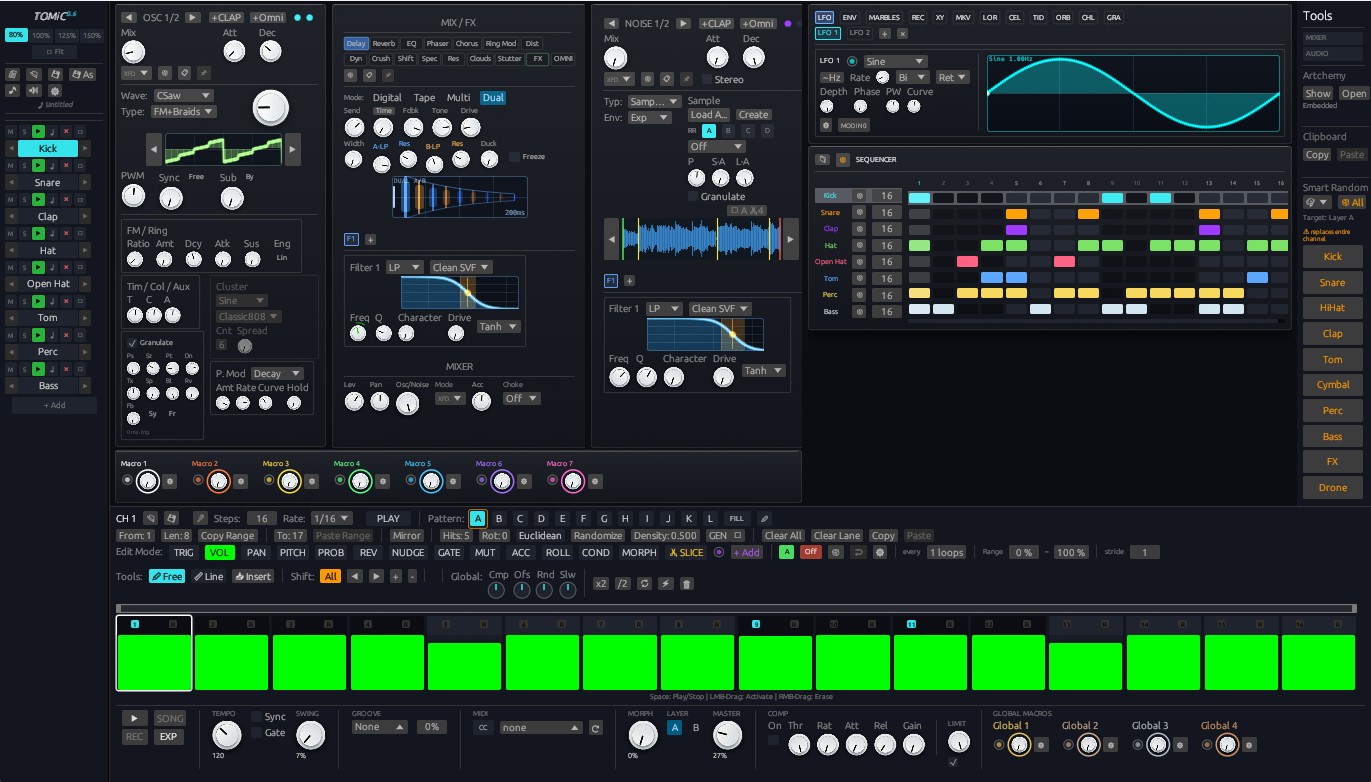
│  [ PIANO ROLL ]  [ STEP SEQUENCER ]  [ EUCLIDEAN PRO ]  [ DRUM MACHINE ]│
└────────────────────────────────────────────────────────────────────────┘
1. PIANO ROLL Mode
- Classic MIDI editor on a time grid (see chapter
/docs/piano-roll).
2. STEP SEQUENCER Mode
- The editor is a fixed-width panel (like the FX and synth panels) whose height follows the dock. Top to bottom: toolbar (banks A/B/C/D + FILL, RES = resolution, SWING, the PRO switch,
PRESET ▾, the⋯menu), lane tabs (each with a miniature of its lane and its own playhead: click = edit that lane, Tab / Shift+Tab = next / previous), the control column on the left and the step grid on the right. - SIMPLE (default) shows the Pitch, Vel, Gate, Prob, Acc and Ratch lanes and the LANE page (loop, shift, Reset / Rnd, Copy / Paste, Draw, Root + Scale, OCT = lock pitch to one octave, e.g. C0; with Scale Lock only that octave's scale degrees). The speaker icon in the toolbar toggles note preview while drawing Pitch. PRO (toolbar button, remembered globally) reveals all 17 lanes and the column pages: LANE (+ direction, clock, Mute Lock, Rnd Mute %, Scale Lock, Audition, Humanize, modulation targets, glide), GEN (Euclid / Shape generators with LIVE mode), RND (auto-randomize), PERF (banks, chain, Fill Bank, Morph, Master Len, Random seed).
- Grid resolution: Quarter (1/4), Eighth (1/8), Eighth Triplet, Eighth Dotted, Sixteenth (1/16), Sixteenth Triplet, ThirtySecond (1/32), ThirtySecond Triplet, SixtyFourth (1/64); the step count is unlimited (loops up to 256).
- Ruler above the bars: step numbers, the amber loop range with draggable start / end handles, step selection (click, Ctrl+click, drag); dragging a handle never paints the steps under it. Ratchet lane: drag up / down inside a step (1..8 hits, also across steps), wheel = ±1, right-click = 1; the bottom cell cycles the velocity curve (flat, falling, rising, random). The step width auto-fits the loop length;
Ctrl + wheelover the grid (orCtrl + =/Ctrl + -) sets it by hand,⋯ → Zoom to fitreturns to auto. - Every step has expression lanes: Pitch, Velocity, Gate, Probability, Octave, Bend, Chord, Roll, Rnd Trigger, Modulation, Nudge, Slide, Ratchet, Accent, NoteLen, Tie plus Elektron-style Step Conditions:
PRE,!PRE,FILL,!FILL,X:Y(e.g. 1:2, 2:3),50%(coin toss),1ST,!1ST. Right-click a condition step for the full list and the X:Y editor. - Each lane has its own loop (polymeter), direction (Forward, Backward, PingPong, Random, Each 2nd/3rd/4th) and clock (÷4 … ×4, polyrhythm). Master Len (PERF page) realigns every lane counter every N steps.
- Tie holds the previous note through a step without retriggering; Slide plays legato and, once a glide parameter is learned (LANE page of the Slide lane: Learn glide), also drives its time.
- Per-clip Swing (0 = project groove template), Humanize (timing / velocity / gate, LANE page of the Velocity and Gate lanes), Random seed (PERF): Lock freezes every random decision (probability, 50%, humanize, Rnd Trigger) so the session, a bounce and Bake -> MIDI produce the same result; Re-seed draws a new seed.
- 4 independent pattern banks A/B/C/D per clip (enabled from
⋯or the PERF page): chain with repeats (click an entry = +1 repeat, right-click = remove), momentary FILL (plays the Fill bank and passesFILLconditions), continuous Morph between the active bank and a chosen one (velocity, gate, probability, pitch). Chain and Fill run in the engine, even with the editor closed; bank buttons and FILL are MIDI-learnable. - ● REC (toolbar, PRO): notes from the MIDI or QWERTY keyboard write pitch and velocity at the cursor;
Space= rest,T= tie,Backspace= step back. - PRESET ▾: factory grooves and
.omniseqsave / load; the ⋯ menu: Reset / Randomize all lanes, Copy / Paste pattern, enable banks, Zoom to fit, Bake -> MIDI (turns the pattern into piano-roll notes through the same resolver playback uses; probability and 50% become note probability, humanize and Rnd Trigger are skipped). Modulation targets can drive a plugin parameter or a MIDI CC (+ CC).
3. EUCLIDEAN PRO Mode
- An algorithmic polyrhythmic loop generator equipped with 8 independent channels (CH 1–8) based on the Bjorklund algorithm.
- Allows you to set the number of steps (Steps: 1 to 64), number of beats (Pulses), phase offset (Offset), and playback direction per channel (Forward, Backward, PingPong, Random, Each 2nd, Each 3rd, Each 4th).
- Offers smooth morphing of 4 banks A/B/C/D, combinatorial logic operators (AND, OR, XOR, AND-NOT), and 4 dedicated LFOs modulating channel parameters.
4. DRUM MACHINE Mode
- Transforms a single clip into a multi-pad drum machine.
- Each drum pad has its own step lane ranging from 1 to 64 steps, with an independent audio sample or MIDI note assigned to the pad (if a pad has no custom sample, it plays the default MIDI note of the synth/sampler on the track).
4. Pattern Banks (Pattern Banks A/B/C/D)
Four independent pattern banks A/B/C/D apply to the Step Sequencer mode (one set of 4 banks for the whole clip) and Euclidean Pro (4 banks per channel, with smooth morphing). In Drum Machine mode, each pad has its own independent set of A/B/C/D banks. The Piano Roll mode does not use the pattern bank system.
5. Live Looper (Real-Time Loop Recording to Session Slots)
The Live Looper is an engine-level system built into the Session View for recording audio loops directly into Clip Slots on the fly, designed for live jamming, vocal takes, and instrument recording without stopping playback.
- One-Click Recording: Simply arm an audio track and click an empty session slot to initiate the recording workflow.
- Recording Start Triggers:
- BAR Mode: Recording starts cleanly on the next downbeat with a full-measure metronome countdown click (toggleable via the CLICK button). Waiting slots display pulsing beat countdown dots.
- Onset Trigger (First Sound): Silent listening mode with an adjustable input meter threshold — recording triggers automatically the moment a guitar pluck, kick, or vocal syllable enters. The loop begins at the input beat, and a pre-roll ring buffer preserves the full attack transient without clipping the beginning.
- Loop Length & Closing:
- Fixed Musical Lengths: 1/2 bar, 1, 2, 4, or 8 bars with automated loop punch-out and instantaneous seamless playback.
- FREE Mode: Loop closing is triggered by clicking the slot again. The engine intelligently snaps the take to the nearest musical unit (1 beat, 2 beats, or full bars) with generous late-click forgiveness.
- Seamless Loop Seam (Zero Crossfade): Pre-roll and natural room/tail decay are automatically wrapped into the loop's seam without requiring destructive, muddy crossfades.
- RAM Tape Bridge & Zero Drift: Immediately upon closing, the loop plays directly from RAM via an ultra-low latency tape bridge buffer. Exactly at the first loop boundary turnover (
Take::hand_over), playback cleanly transitions to an engine clip locked to song position (loop_lock) — guaranteeing zero timing drift over hours of playback. - Recording Quantization: Optional automated timing quantization detects incoming hits and snaps them to a 1/16 or 1/8 note grid with 2 ms micro-crossfades before attacks, while hits already landing on the grid remain bit-for-bit unadulterated.
- Input Latency Compensation: The engine measures and compensates for audio interface hardware latency (ASIO, WASAPI, ALSA, JACK), ensuring that live guitar, bass, and microphone recordings lock precisely onto the groove.
A comprehensive guide to keyboard shortcuts in Omni DAW: navigating panels, transport controls, editor modes, Live mapping, and the QWERTY MIDI virtual keyboard.
A comprehensive guide to the Piano Roll MIDI editor in Omni DAW: 4 editing tools, 10 note expression lanes, Chop division, Scale Fold, and chord theory.